
Let’s Build the Site’s First Page
This Part
Your site is on, but it still shows only the repo’s name. In this part you build the first real page: a page with the practice’s name, address, phone and opening hours, taken from the same practice information file you wrote earlier, and with a look you choose yourself. AI does the building, and your job is to say what you want and check the result.
For this, the AI has to be connected to your GitHub account so it can create files in the repo. If you have not connected it yet, part three of Promptologist Appendix 2 shows how, step by step and with pictures.
Choose an address for the page
Every page of a site has its own address. DentCast’s site is dentcast.ir, and its practice information page has this address: https://dentcast.ir/card/
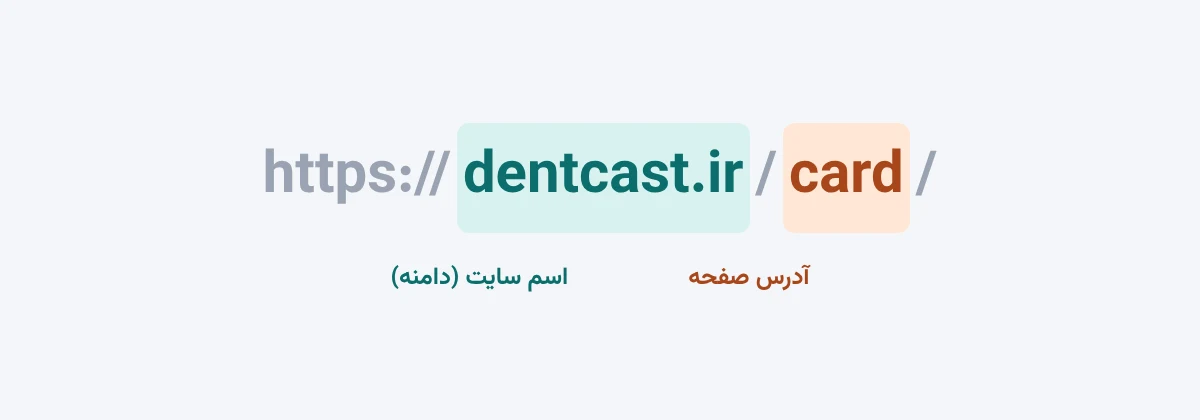
For your own page, choose a short English word that says what the page is about, such as clinic or card. Choose this word carefully, because once you have given the address to patients it should not change again. If it changes, every patient who has the old link reaches an empty page.
Decide the site’s look yourself
Every page of a site has two parts: text and look. The text is the information you wrote in the file. The look means the colors, the font, the size of the text, where the pictures go and the shape of the buttons.
The site’s look is written in a separate file called CSS. You do not need to read or write this file, but it is good to know it exists, because every page of the site takes its look from this one file. That means pages you add later automatically take the shape of the first page, and if one day you want to change the site’s look, the texts and addresses are not touched.
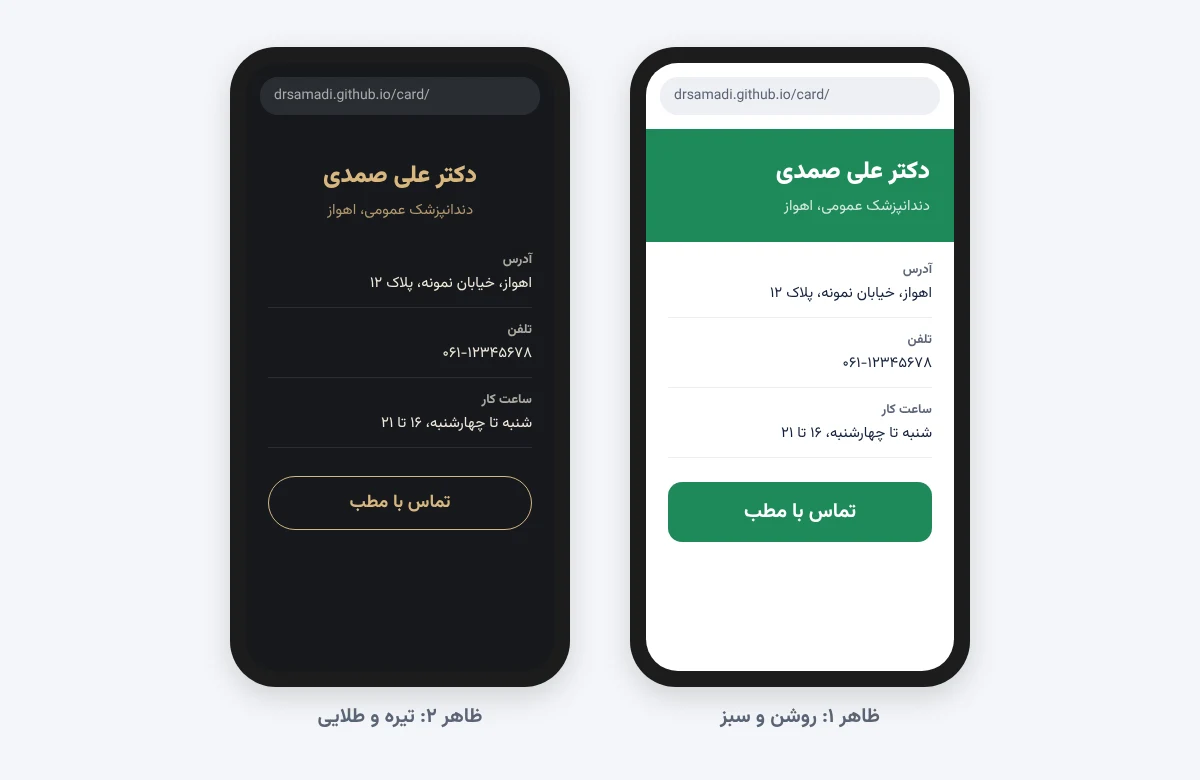
There is no limit on the look. Any color, any font and any layout you want is possible, and your site does not need to resemble any other site. The only thing you have to do is get your idea across to the AI. A few ways to do that:
- Describe it in words, for example: “Simple and bright, in the green of my practice sign, so that the phone number is the first thing you see.”
- Take screenshots of sites whose look you like, give them to the AI and say which part you like. The picture is to show the feel, not to be copied.
- If you have no particular idea, ask the AI to suggest three completely different looks and pick one.
Ask the AI to build the page
Give the AI the practice information file, and also any picture or description you have for the look, and write the text below. Replace the repo name, the address word and the description of the look with your own:
In the repo drsamadi.github.io, build the site. Build a page with the address card that shows the practice’s name, address, phone and opening hours exactly as they are written in this file, without any change. For now, the site’s home page should show only my name and link to the card page. Write the site’s look in a separate file that every page uses. The look I want: [your own description]. The pages should be in Persian and look good on a phone. Prepare the changes for my approval and do not finalize them until I say so.
When the AI reports that it is done, write: “I approve, finalize it.” A few minutes later the new page appears on the site.
See the site on your phone
Open the site’s address on your phone. Now, instead of the repo’s name, you see your own name and a link to the practice information page. Tap the link, or open the page’s address directly, for example https://drsamadi.github.io/card/
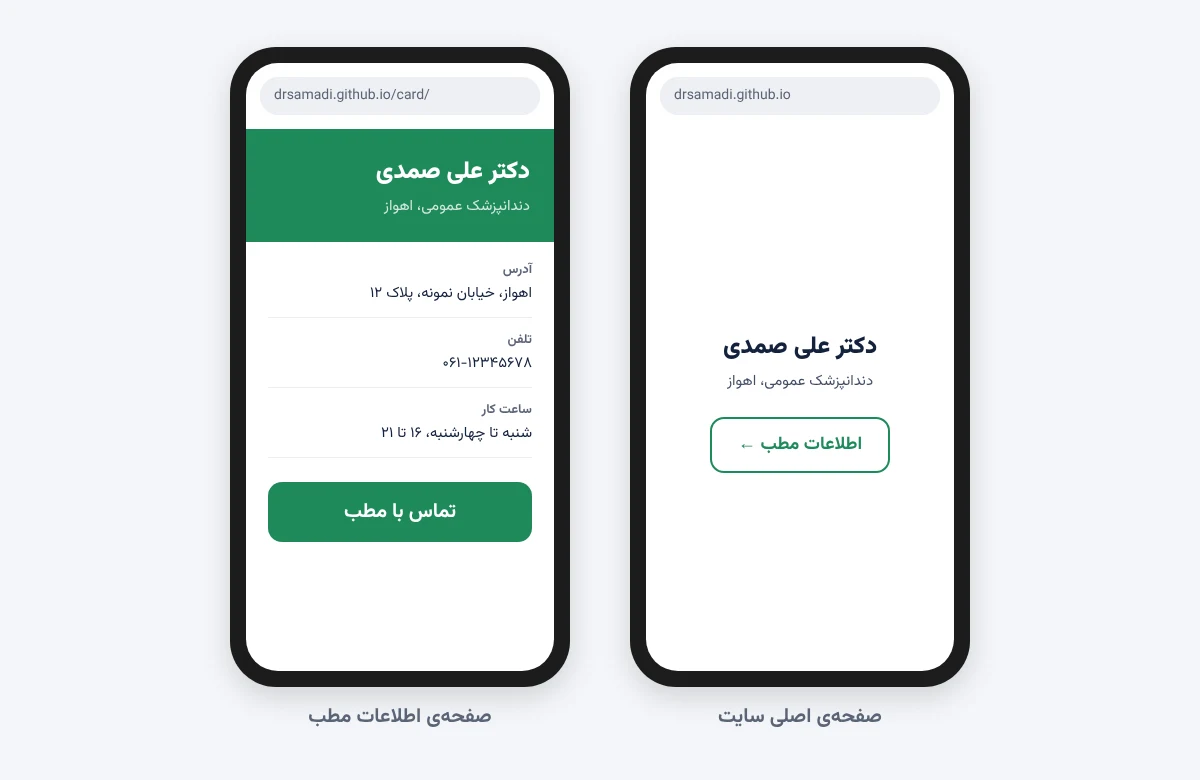
Look at the appearance first. If there is something you do not like, tell the AI in plain language, for example “make the call button bigger” or “the text is small on a phone”. After your approval, the change appears on the site a few minutes later. You can repeat this as many times as you need, and each time only the look changes.
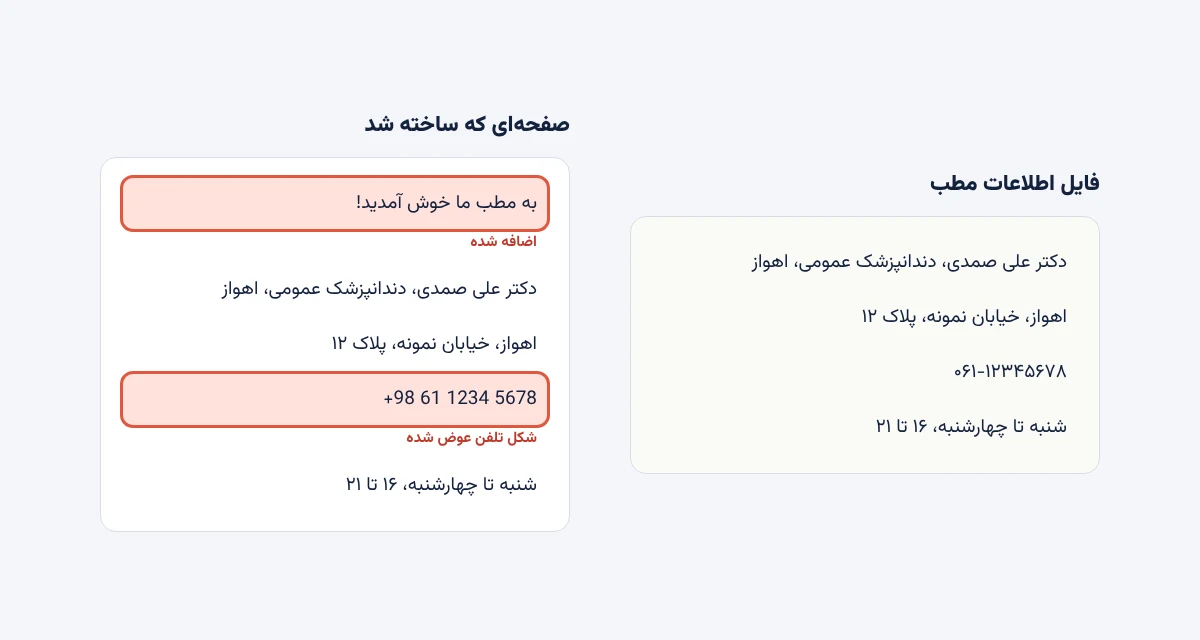
Then compare the text with the practice information file line by line. The name must be exactly the first line of the file, the phone numbers the same numbers and the opening hours the same days. AI sometimes changes something without your asking, for example it changes the way the phone number is written or adds a welcome sentence. These small changes are easy to miss, but they are exactly the kind of mismatch Google sees in practice information. If something does not match the file, say which line differs so it can fix it.
You have done it right if:
- the practice information page opens on your phone at its own address, with the look you chose yourself;
- the page text matches the practice information file letter for letter.