
Appendix 2 — Part 2: Keep the First File Outside Your Account
This Part
Suppose you have developed a useful instruction with AI for writing postoperative care advice. You have tested and revised it several times until it finally produces texts the way you want.
Now you want to keep that instruction, both for future use and for a day when you might no longer have access to this account.
In the previous part, we said to ask the AI to provide the final instruction as a Markdown file. Now we want to put that file on GitHub so it also exists outside the AI account.
Before we begin, an important point: the manual steps in this part are only a way to see the process. After connecting an appropriate AI tool to GitHub and granting the necessary access, you can also ask the agent to create the file, put it in the repo, and commit its changes. You do not need to carry out these steps manually every time.
But we will go through the process ourselves once, so that when we tell the AI to “put this file on GitHub,” we know where the file is supposed to go and how to check that it is there.
A Cabinet with Separate Folders
For now, think of GitHub as a cabinet for storing files. This cabinet is on the internet, and you can access it from your phone or laptop.
Inside this cabinet, we create a separate place for each project: one for our AI instructions, for example, another for an article we are writing, and another for a thesis.
GitHub calls each of these project storage spaces a “repository,” or “repo” for short.
So when we say “create a repo,” for now we mean: make a specific place for this project's files.
A repo does more than store files; it also keeps the history of the changes we commit to it. We will discuss this feature in more detail later.
First, Open GitHub
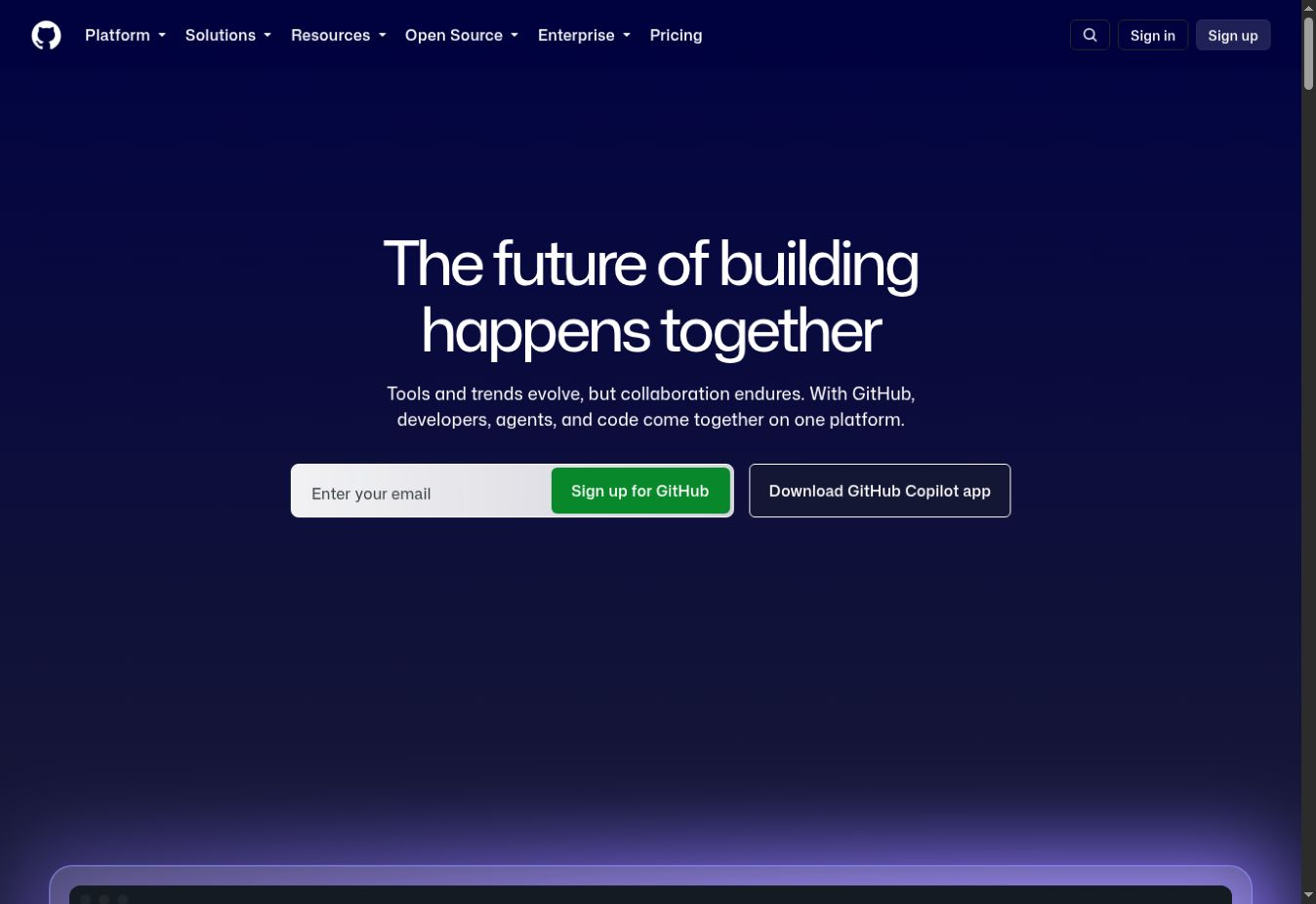
Open github.com in your browser.
If you do not have an account, select Sign up and follow the account creation steps. If you already have an account, use Sign in.
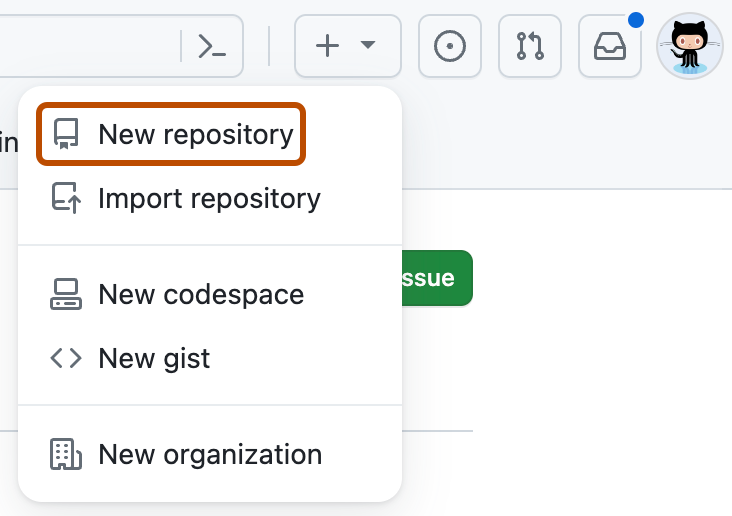
After signing in, open the plus-sign menu at the top of the page and select New repository to create a repo.
What Should We Name This Repo?
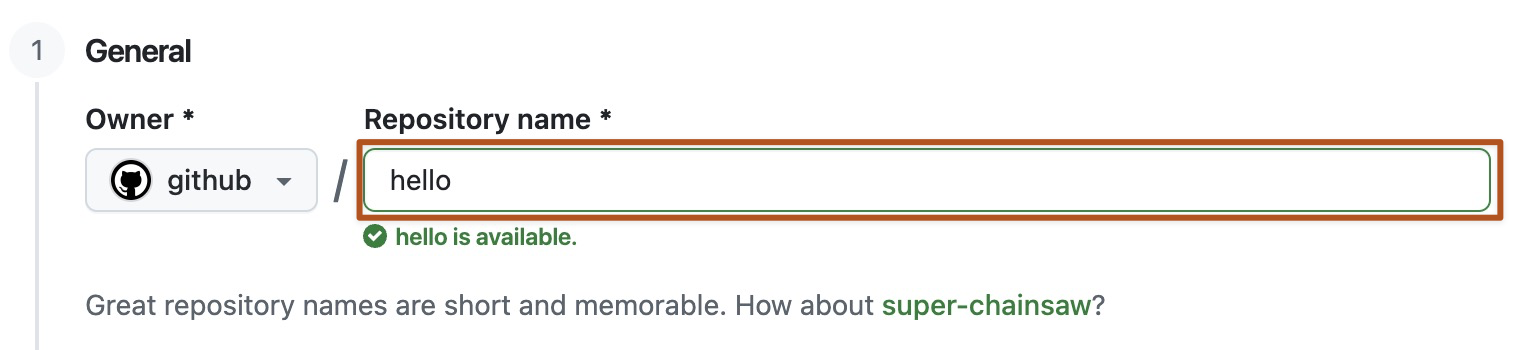
On the new page, you will see a field called Repository name. Enter the repo's name here.
For our example, enter:
my-prompts
It means “my prompts.” This is where we will keep the instructions we have developed for working with AI.
Should the Files Be Public or Private?
There are two visibility options: Public and Private.
Public means other people can also view the repo's contents.
Private means the contents are not visible to the general public. You and any people or tools that have been granted access can work with them according to their permissions.
For this example, select Private. A private repo still does not give you permission to put patient information, passwords, or access keys inside it.
You will also see an option called Add README. Turn it on.
README is an introductory file where we can explain what the repo is for and what its files do, like the information sheet that accompanies a case box.
You do not need to write anything in it for now.
Now select Create repository.
Your repo page will open. You will see its name at the top of the page, and README will appear in the file list.
The storage space is ready; we have not put our instruction inside it yet.
Put the First File in the Repo
Return to the conversation where you developed the instruction, such as the instruction for writing postoperative care advice. Tell the AI:
“Give me the final instruction for writing postoperative care advice, together with a short explanation of how to use it, in a Markdown file that I can download. Do not include the earlier conversations; keep only the final instruction and the necessary explanations.”
Markdown is a text file, usually with the .md extension. You do not need to write it yourself; the AI prepares the file.
Download the file, meaning save it on your phone or laptop. Read its contents and make sure it is the version you want to keep.
Now return to your my-prompts repo on GitHub. Above the file list, open Add file and select Upload files, meaning “I want to put a file from my device here.”

On the upload page, select choose your files and choose the file you downloaded. Wait until the file name appears on the page.
In the Commit changes section, you can write a short description, such as “Add the postoperative care instruction.” Then finalize adding the file with the commit button. We will explain exactly what a “commit” means later in this series; for now, remember that selecting the file alone is not enough, and this step must be committed.
After committing, the file should appear in the repo's file list. Select its name and read the text.
If you see the same instruction, this stage is complete: a copy of your instruction now exists on GitHub too. You no longer need to search through earlier conversation messages to find it; open the repo and then the file.
Do We Have to Upload the File Ourselves Every Time?
No. We only followed the manual process to see where the file goes. After connecting an appropriate AI tool to the repo, you can ask the agent to do the same thing.
You can even establish the connection immediately after creating the repo and ask the agent to put the very first file there too.
After connecting the tool and granting the necessary access, your request can be this simple:
“Create the final version of this instruction as a Markdown file and commit it to my my-prompts repo on GitHub. Give me the file link so I can open it and check it.”
If you developed the instruction in a different conversation or tool, you need to give its text or file to the agent connected to GitHub; you should not assume it can see all your conversations.
For later changes, you can also say:
“Read the postoperative care instruction file from the repo. Add this point to it and commit the new version to GitHub. Give me the link to the updated version.”
Your role is to specify what should be kept, review its text, and make sure it has been committed in the intended location. The agent carries out the operational work.
In the next part, we will connect the AI to this repo step by step. We will then move on to an independent copy on a laptop, because we still do not want all the files to remain in just one online account.