AI Image Mock-up: Why a Single Prompt Did Not Work
In Insight 89 I presented a patient whose two maxillary central incisors had very short roots and were mobile; both lateral incisors were also missing, and the proposed treatment plan was to extract the two centrals and place two implants carrying four teeth in the space between the two canines. So that the patient could see roughly what the result would look like before this irreversible decision, I built an image mock-up with AI on their own intraoral photo. There I showed only the initial photo and the final result, but reaching that result did not happen with a single prompt, and the path that led to it seems to me more important than the result itself.
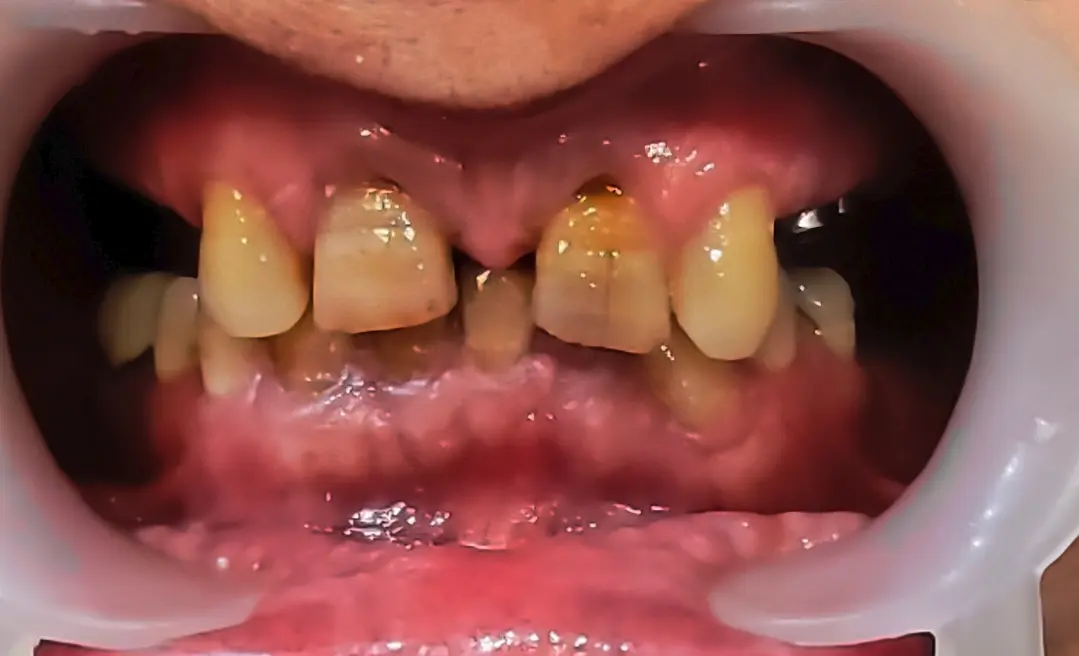
In the first attempt I wrote one prompt that asked for both things at once: remove the two centrals and put four teeth in the space between the two canines in their place. The result was clearly wrong, because the two centrals were still in place at almost the same width and the space had not been divided among four teeth.
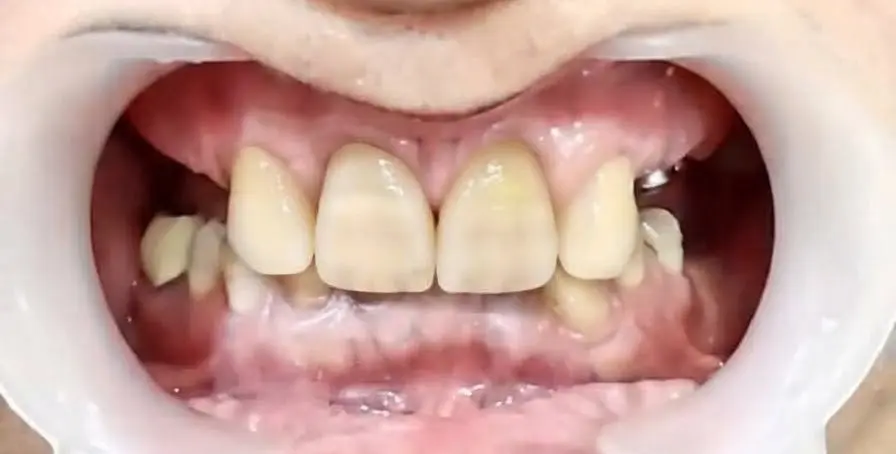
I tried the same approach once or twice more and did not get an acceptable result. Then it occurred to me that I was actually asking the AI for two separate jobs, one removal and one addition, and when the two come in a single prompt they get mixed up. So I split the work into two stages, in the same order it happens in the clinic: extraction first, then the prosthesis.
In the first stage I asked only for the two centrals to be removed and said nothing about new teeth. I stressed that the rest of the photo should stay completely unchanged, meaning the canines, the lower teeth, the gingiva, the lip and the retractor must not change at all. The result was exactly what I wanted: an empty space between the two canines, without the rest of the image having been touched.
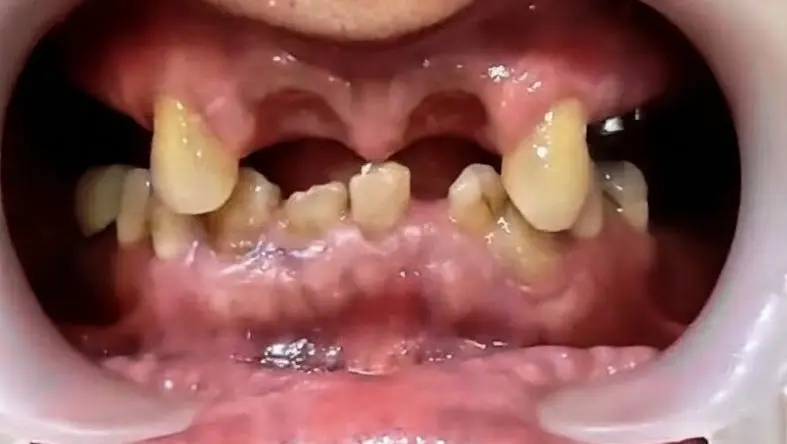
In the second stage I gave it this same photo without the centrals and explained that four teeth should be placed in this space and what their characteristics should be. This time the space was divided correctly and the four teeth sat in their places, but the incisal edges did not come out right and were not level.
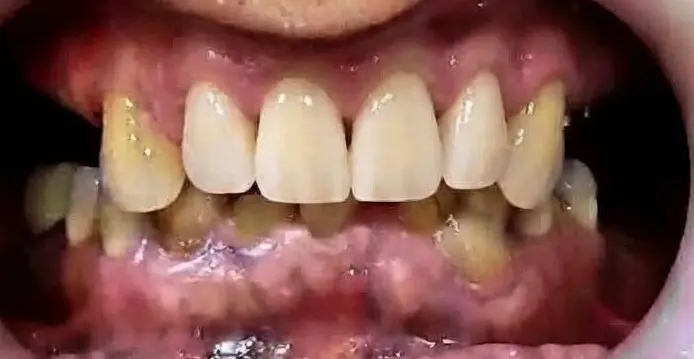
I set this wrong result aside and did not continue working on it, because correcting a wrong image means asking for several changes at once all over again. Instead I went back to the photo from the first stage, the one with only the centrals removed, and changed the prompt. I had realized that from the general phrase "put four teeth" the AI could not tell what kind of prosthesis I had in mind or what the incisal edge should look like. So I explained the problem the way I would define it for a real prosthesis: the prosthesis should be an FP3, meaning that in addition to the tooth crowns it also replaces part of the gingiva, and the incisal edges should be level. With this explanation the result came out right.
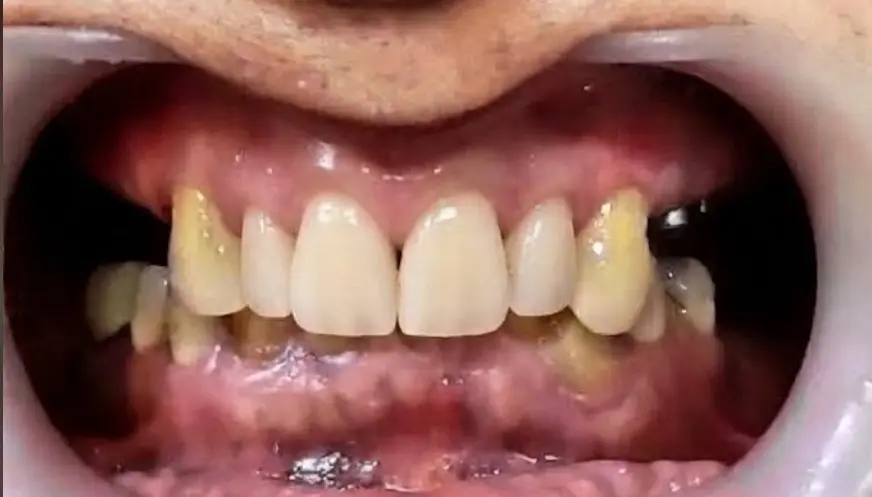
In both the removal stage and the addition stage I stressed in the prompt that the rest of the photo's details should not be touched. This emphasis mattered a great deal, because the value of this mock-up for the patient lies in seeing a photo of their own mouth in which only the area to be treated has changed. If the gingival colour, the shape of the canines or the lower teeth change as well, the image is no longer their mouth and the before-and-after comparison means nothing.
Three things made this work. First, I asked for a two-stage job in two separate stages and raised only one change in each stage. Second, when the result of the second stage was wrong, I did not work on the wrong image but started again from the clean photo of the previous stage. Third, I assumed the AI had not understood what I meant and that I had to state the same concept in precise prosthetic terms, such as the type of prosthesis and the state of the incisal edge.